AirPort Extreme WAN port

Examine the exhibit.

What AirPort Extreme port does the number 3 identify?
A. USB
B. LAN
C. WAN
D. Power
E. FireWire
[toggle title_open=”Close Me” title_closed=”Answer” hide=”yes” border=”yes” style=”default” excerpt_length=”0″ read_more_text=”Read More” read_less_text=”Read Less” include_excerpt_html=”no”]C[/toggle]

Questions when troubleshooting AirPort issues

Which THREE of the following probing questions are most appropriate to ask the customer when troubleshooting AirPort issues? SELECT THREE
A. Are wired computers affected as well?
B. Are just wireless computers affected?
C. How much RAM do you have installed?
D. What is the computer’s processor speed?
E. What is the resolution of the computer’s display?
F. Are any hubs, routers, or other computers connected to the network?
[toggle title_open=”Close Me” title_closed=”Answer” hide=”yes” border=”yes” style=”default” excerpt_length=”0″ read_more_text=”Read More” read_less_text=”Read Less” include_excerpt_html=”no”]A, B, F[/toggle]

AirPort Extreme or Express Base Station Soft reset

If you are unable to find the password for an AirPort Extreme or Express Base Station, you should perform a _______.
A. Soft reset
B. Hard reset
[toggle title_open=”Close Me” title_closed=”Answer” hide=”yes” border=”yes” style=”default” excerpt_length=”0″ read_more_text=”Read More” read_less_text=”Read Less” include_excerpt_html=”no”]A[/toggle]

SOFT RESET
The AirPort Extreme must be connected to power during the following steps.

Step One
Disconnect any Ethernet cables from the base station.

Step Two
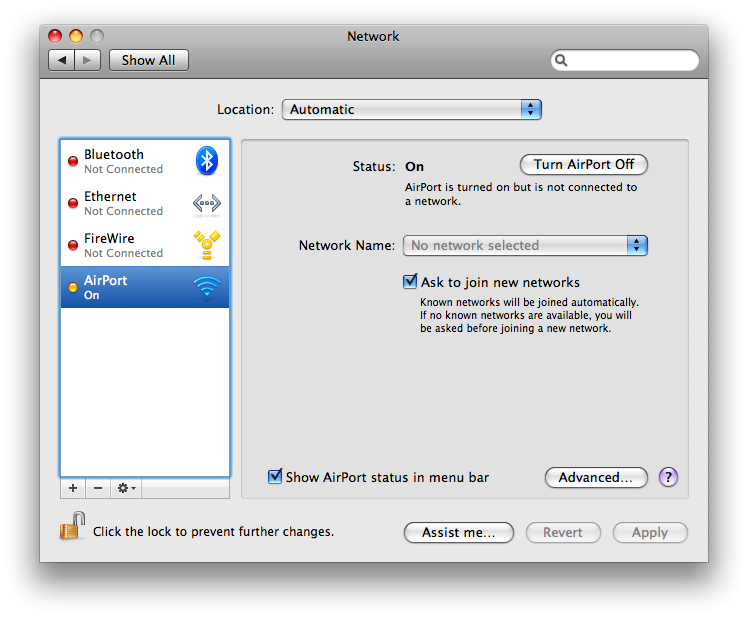
Select System Preferences… from the Apple menu at the top left hand corner of the screen.

Step Three
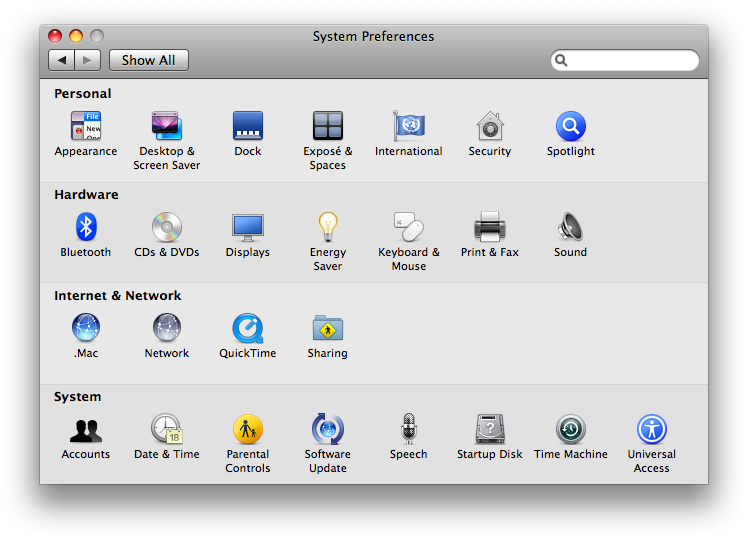
Click the Network icon to open the Network Preferences.

Step Four
Select Airport from the list of connections on the left.

Step Five
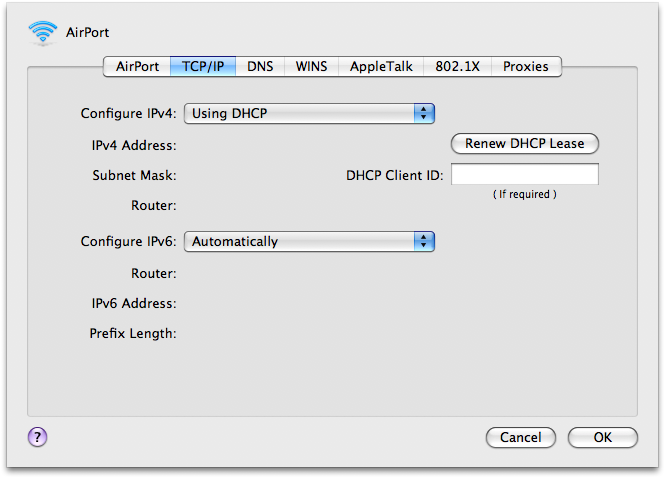
Click the Advanced button.

Step Six
Click to select the TCP/IP tab.

Step Seven
Set the Configure IPv4 to Using DHCP.

Step Eight
Press and hold the base station reset button for one full second. The base station remains in reset mode for five minutes. If you do not make your changes within five minutes of pressing the reset button, the base station will revert to the previous configuration.

Note: Holding the reset button for 5 seconds or longer will do a hard reset. AirPort will indicate if it’s in hard reset mode by blinking faster.

Step Nine
From the AirPort menu bar item, choose the network created by the base station (the network name does not change).

Step Ten
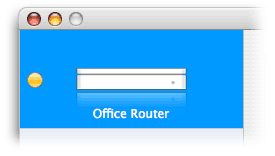
Open the Airport Utility from the Applications : Utilities folder.

Step Eleven
Locate and double-click your base station to configure it.
Step Twelve
Ignore the errors in Base Station Status at this time. You now have the opportunity to change settings such as base station password, network password, the Access Control List, and RADIUS.
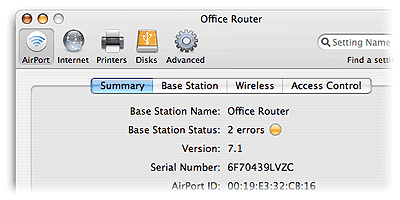
– To reset base station password, choose Base Station tab and edit the password field.
– To change the network password, choose the Wireless tab and edit the Wireless password field. Or, turn on encryption (WPA2 is recommended) and enter a new password for your AirPort network.
– Unless you have been given an IP address by your ISP or system administrator, do not change the IP address.

Step Thirteen
Click Update. The base station restarts to load the new settings. Plug back in the Ethernet cable and reconnect to your network.

AirPort Extreme Base Station stopped responding

If an AirPort Extreme Base Station stopped responding, has network accessibility issues, or needs to be reverted back to default factory configuration, you should perform a _______.
A. Soft reset
B. Hard reset

[toggle title_open=”Close Me” title_closed=”Answer” hide=”yes” border=”yes” style=”default” excerpt_length=”0″ read_more_text=”Read More” read_less_text=”Read Less” include_excerpt_html=”no”]B[/toggle]

Holding the reset button for 5 seconds or longer will do a hard reset.

AirPort will indicate if it’s in hard reset mode by blinking faster

MagSafe power adapter does not illuminate at all

The LED on a MacBook (13-inch Late 2009) MagSafe power adapter does not illuminate at all when it is plugged into the MacBook and you know the adapter is connected to a known good power source. What is the most likely cause of this symptom?
A. The MacBook has a faulty backup battery.
B. TheMagSafe adapter needs to be reset first.
C. The MacBook has a faulty magnetic sleep sensor.
D. A MagSafe adapter connector pin is stuck down or dirty.
[toggle title_open=”Close Me” title_closed=”Answer” hide=”yes” border=”yes” style=”default” excerpt_length=”0″ read_more_text=”Read More” read_less_text=”Read Less” include_excerpt_html=”no”]D[/toggle]

Troubleshooting MagSafe adapters


Troubleshooting backlighting issues in Apple displays

Which of the following statements describes how CCFL backlighting is similar to LED backlighting when troubleshooting backlighting issues in Apple displays?
A. Both types of displays use fluorescent lights.
B. Both types of displays use light emitting diodes.
C. Both types of displays are diagnosed identically.
D. Both types of displays have components that are individually replaceable.
[toggle title_open=”Close Me” title_closed=”Answer” hide=”yes” border=”yes” style=”default” excerpt_length=”0″ read_more_text=”Read More” read_less_text=”Read Less” include_excerpt_html=”no”]C[/toggle]


What is the correct name for this type of pixel anomaly?

Examine the exhibit.


What is the correct name for this type of pixel anomaly?
A. Dark dot defect
B. Stuck sub-pixel
C. Bright dot defect
D. Vertical TAB fault

[toggle title_open=”Close” title_closed=”Answer” hide=”yes” border=”yes” style=”default” excerpt_length=”0″ read_more_text=”Read More” read_less_text=”Read Less” include_excerpt_html=”no”]D[/toggle]

Which of the following can permanently damage an LCD display?

Which of the following can permanently damage an LCD display?
A. Rubbing the display.
B. Using a screen saver.
C. Not using a screen saver.
D. Turning brightness up too high.

[toggle title_open=”Close Me” title_closed=”Answer” hide=”yes” border=”yes” style=”default” excerpt_length=”0″ read_more_text=”Read More” read_less_text=”Read Less” include_excerpt_html=”no”]A[/toggle]

SD card slot does not appear

Which THREE troubleshooting steps should be attempted if the SD card slot does not appear in System Profiler on MacBook Pro (13-inch, Mid 2009)? SELECT THREE
A. Reset PRAM.
B. Reset the SMC.
C. Force the card into the slot.
D. Back up user data, then erase and reinstall Mac OS X.
E. Remove and reinsert the card with a third party SD card adapter.
F. Start up from the Mac OS X Installer DVD or external disk and check System Profiler.
[toggle title_open=”Close Me” title_closed=”Answer” hide=”yes” border=”yes” style=”default” excerpt_length=”0″ read_more_text=”Read More” read_less_text=”Read Less” include_excerpt_html=”no”] A, B, F[/toggle]

Symptoms would most likely be resolved by performing an SMC reset

Which THREE of the following symptoms would most likely be resolved by performing an SMC reset as a first step? SELECT THREE
A. Computer does not turn on
B. Cursor is unresponsive in Finder
C. Network / Internet connectivity issues
D. USB and/or FireWire port(s) do not function
E. Computer does not sleep / wake from sleep
[toggle title_open=”Close Me” title_closed=”Answer” hide=”yes” border=”yes” style=”default” excerpt_length=”0″ read_more_text=”Read More” read_less_text=”Read Less” include_excerpt_html=”no”]A, D, E[/toggle]

SMC RESET